Screens
Overview
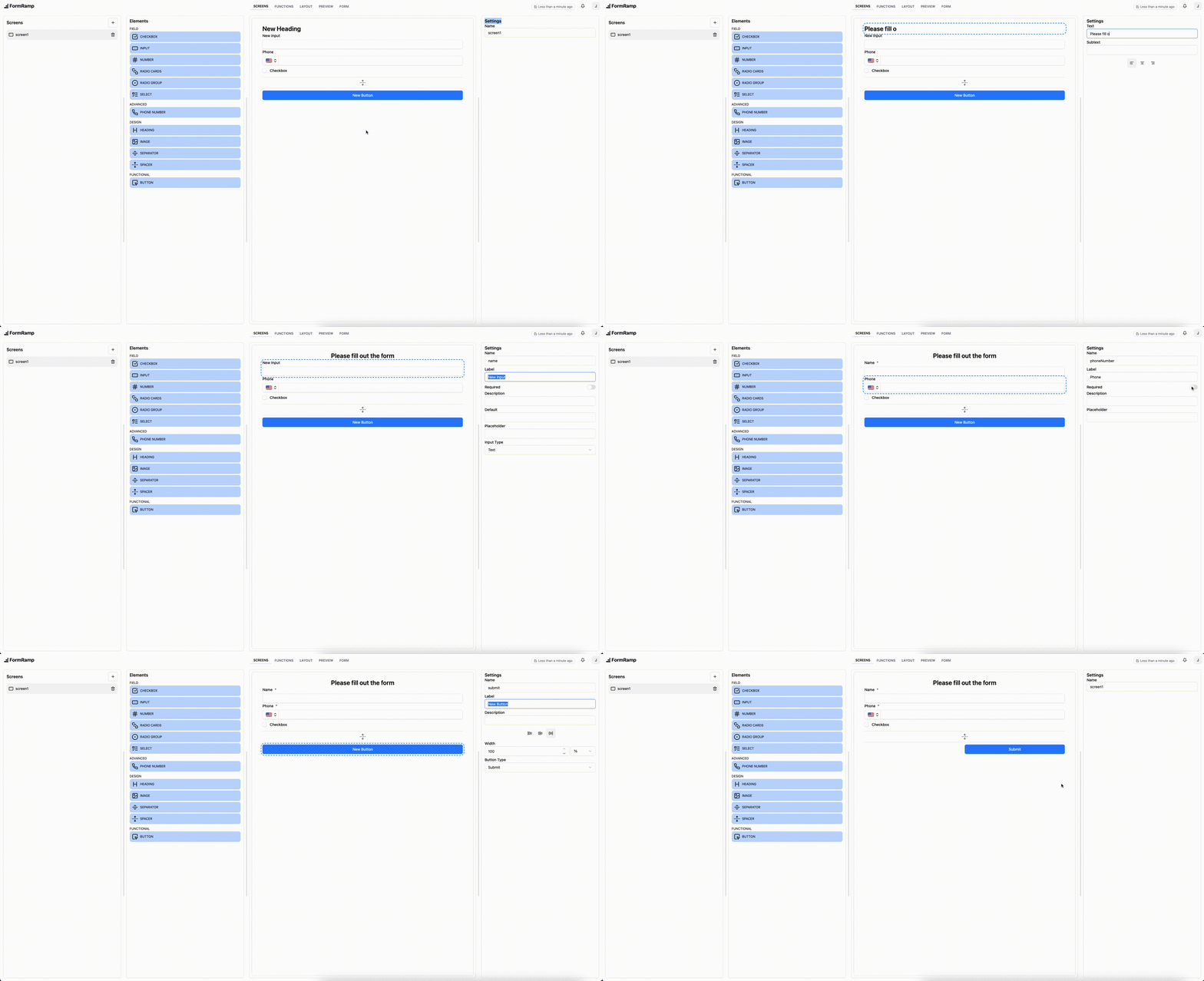
Section titled “Overview”Screens are the steps of your form. Each screen is shown to the user one at a time, and they advance through the sequence by submitting a screen that contains a Submit button.
Sections
Section titled “Sections”Screens Toolbox
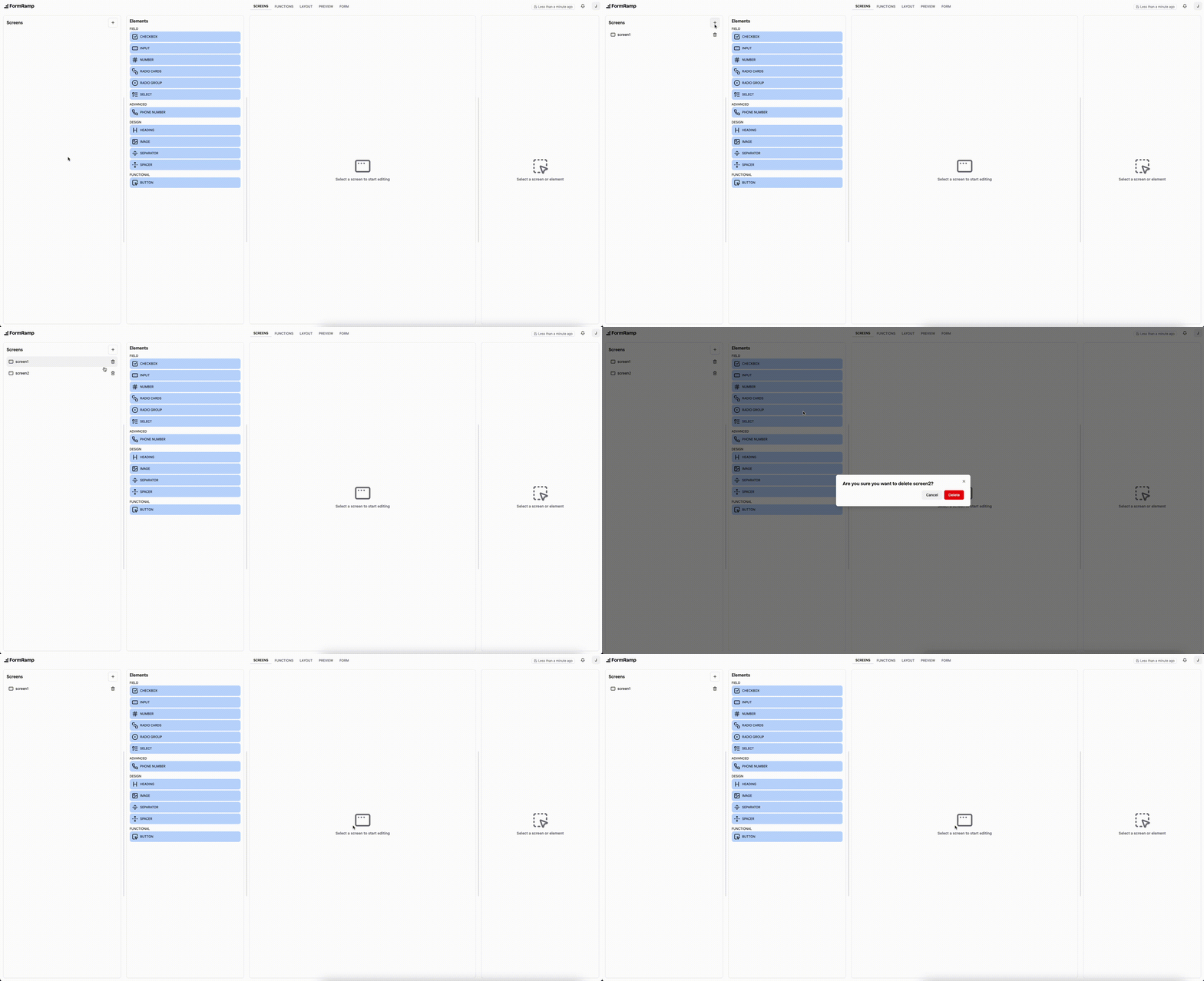
Section titled “Screens Toolbox”The screens toolbox lists all screens in the form and lets you create and delete them. Click a screen to select it and load it in the canvas.
Elements Toolbox
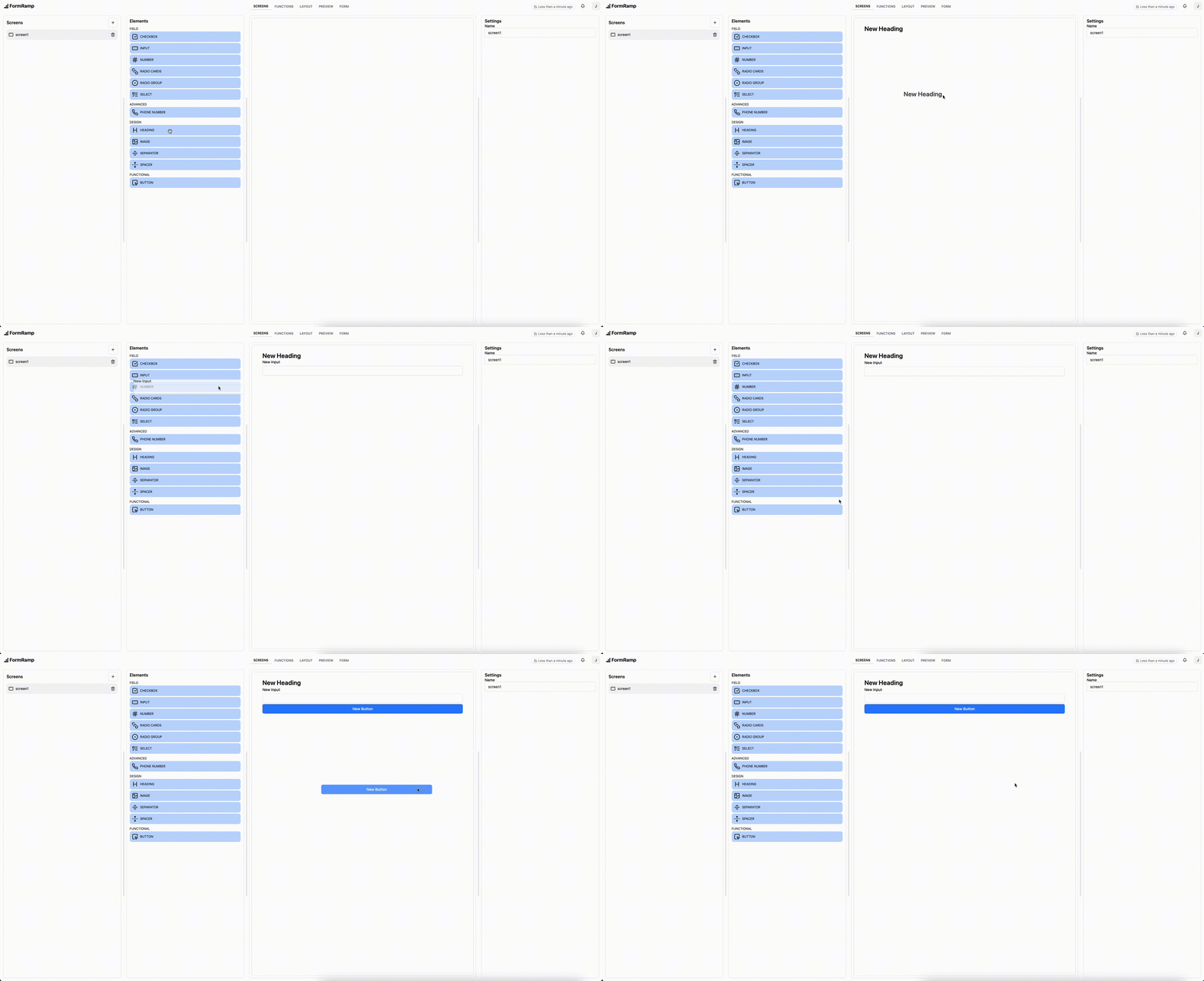
Section titled “Elements Toolbox”The elements toolbox contains all available input types. Drag an element from the toolbox onto the canvas to add it to the current screen.
See Elements for a full reference of every element type and its attributes.
Canvas
Section titled “Canvas”The canvas is the editable preview of the current screen. Drag elements to reorder them. Click an element to select it and edit its attributes in the Settings Section.
Settings Section
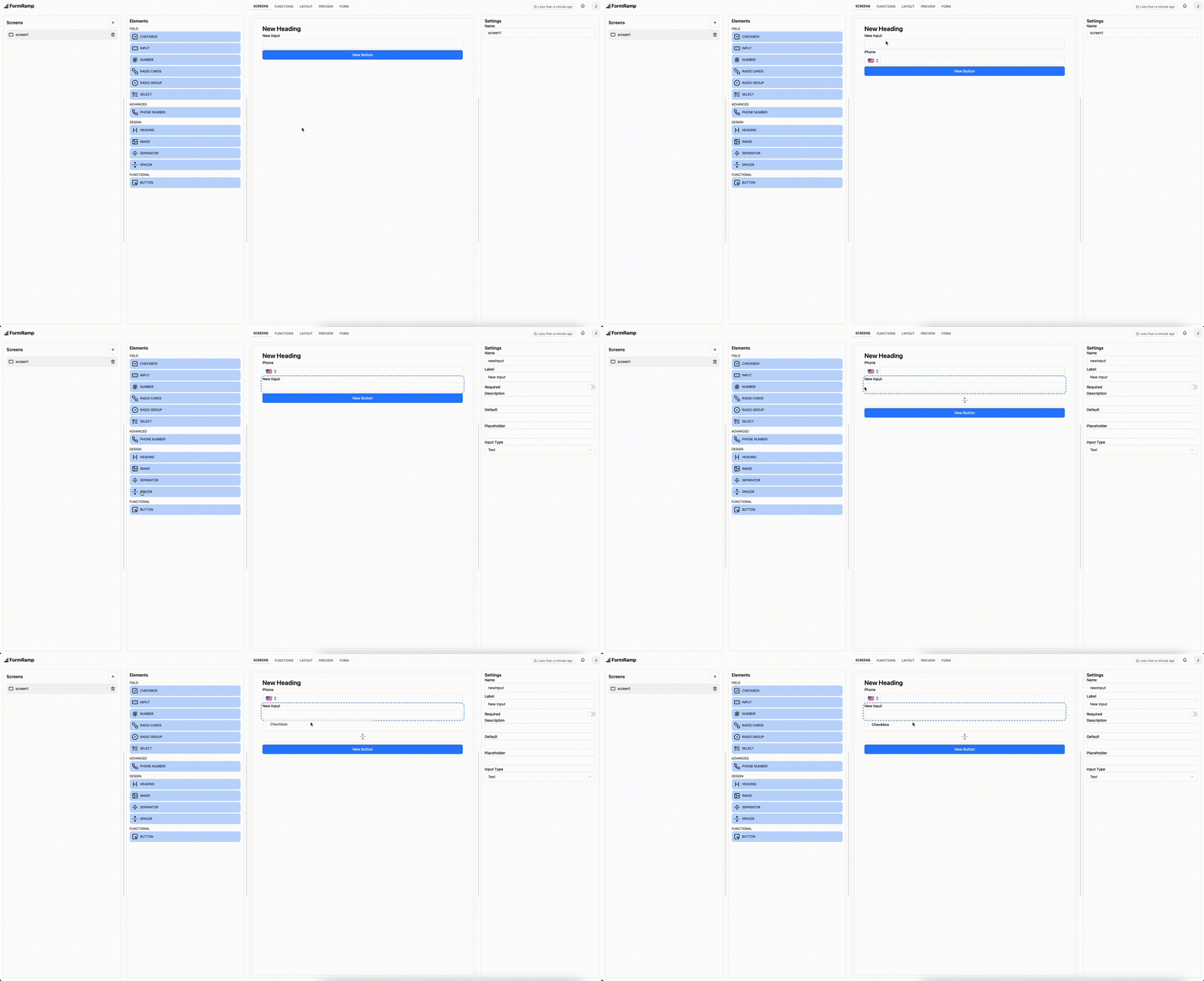
Section titled “Settings Section”The settings section shows the editable attributes for the selected element or screen. Changes are reflected on the canvas immediately.
When no element is selected, screen-level attributes (such as the screen name) are shown instead.