

Layout
Overview
Section titled “Overview”The layout tab defines the flow of your form. Screens, functions, and logic nodes are arranged as a graph. The path a user takes through the form is determined by how these nodes are connected.
Every layout begins with a Start node. Connect it to the first screen you want users to see.
Nodes Toolbox
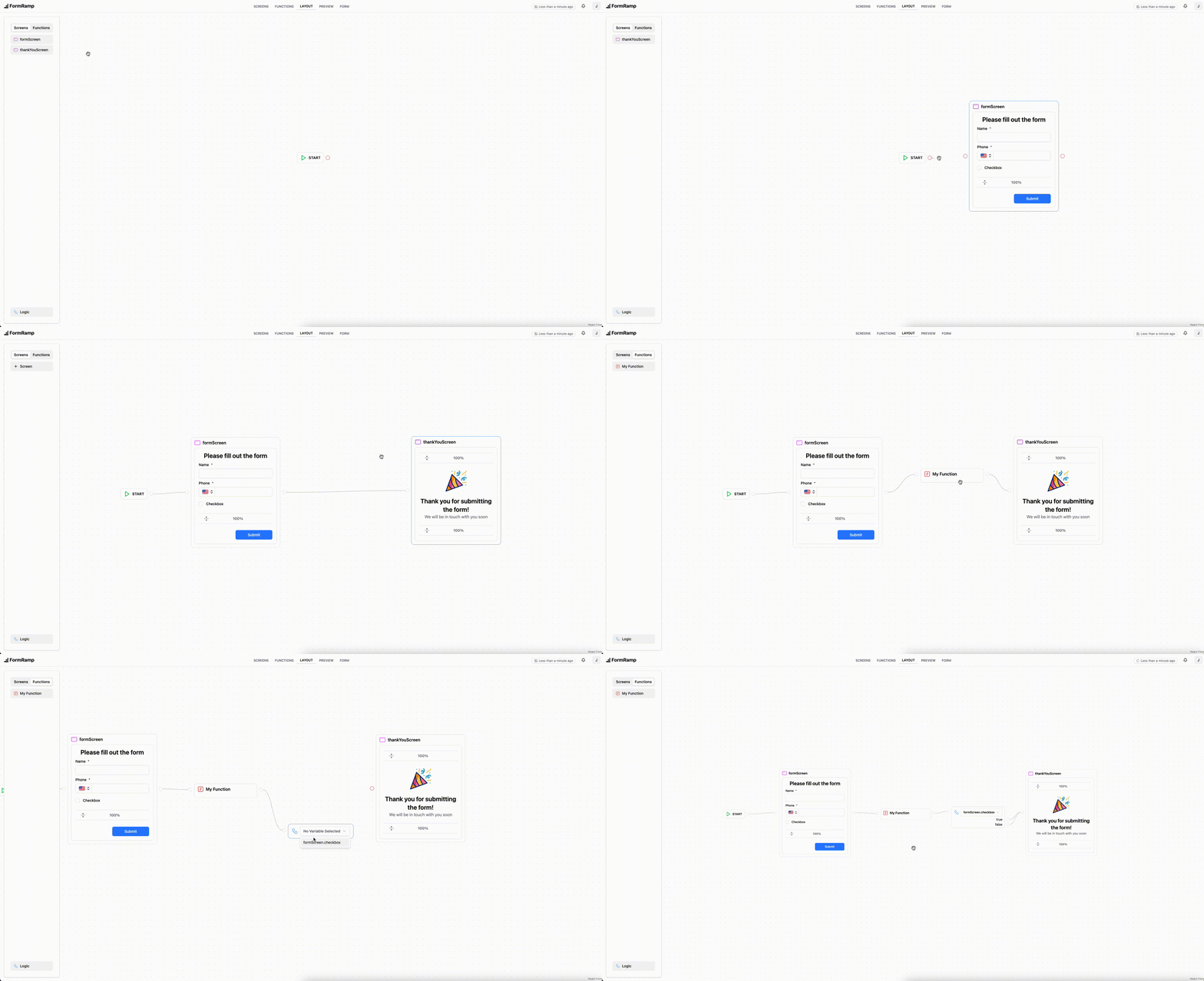
Section titled “Nodes Toolbox”The nodes toolbox lists all screens and functions you’ve defined, and provides access to the Logic node. Drag any item from the toolbox onto the canvas to add it as a node. Use the Screens and Functions tabs to switch between available items.
Connecting Nodes
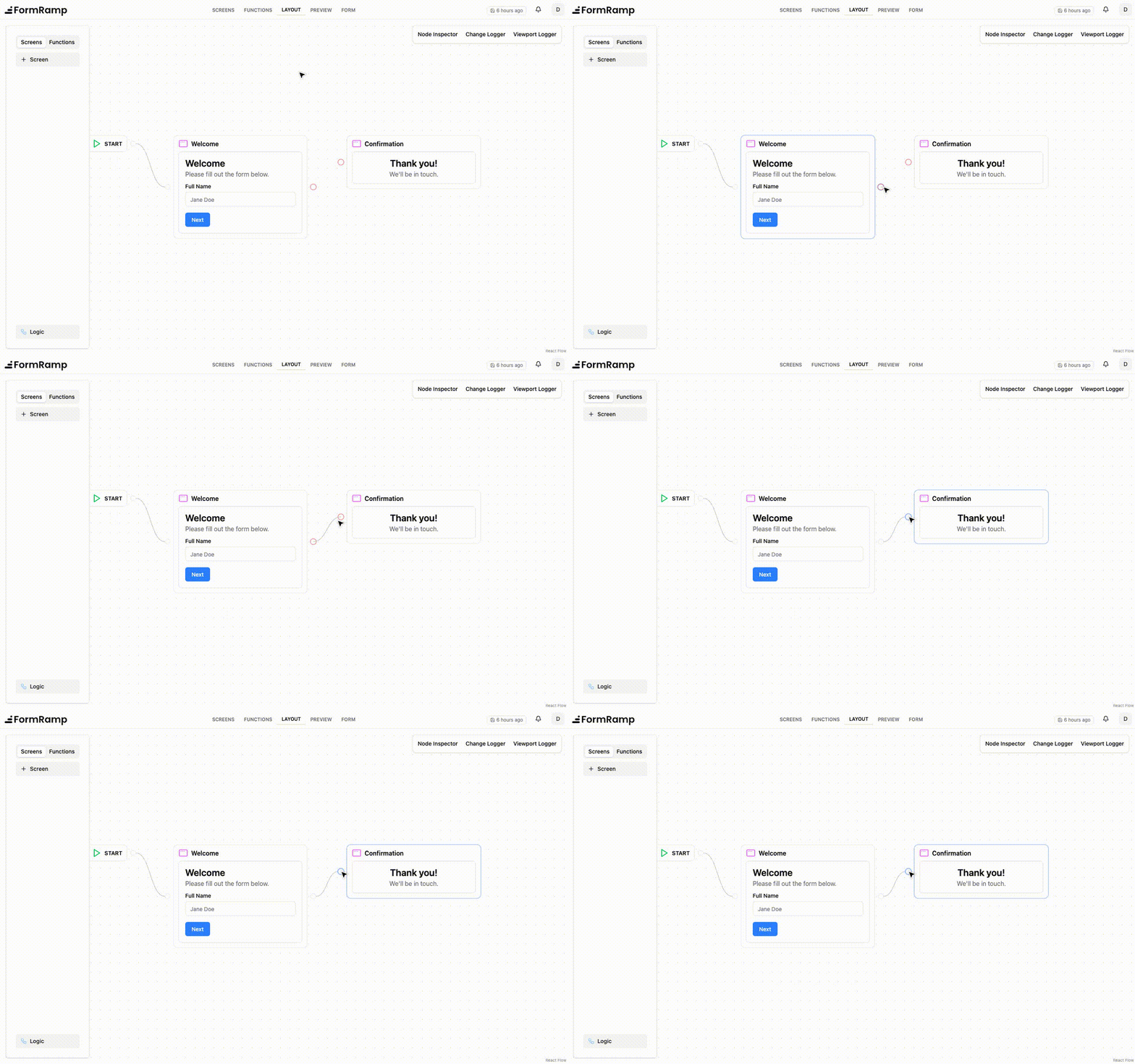
Section titled “Connecting Nodes”Draw a connection by dragging from the source handle (right side) of one node to the target handle (left side) of another. Releasing over a valid target creates the edge.
Screen Nodes
Section titled “Screen Nodes”Each screen can appear in the layout once. The node renders a miniature preview of the screen’s content.
Any screen that contains a Submit button must have at least one outgoing connection.
Function Nodes
Section titled “Function Nodes”Functions can appear any number of times in the layout. A function node must always have an outgoing connection.
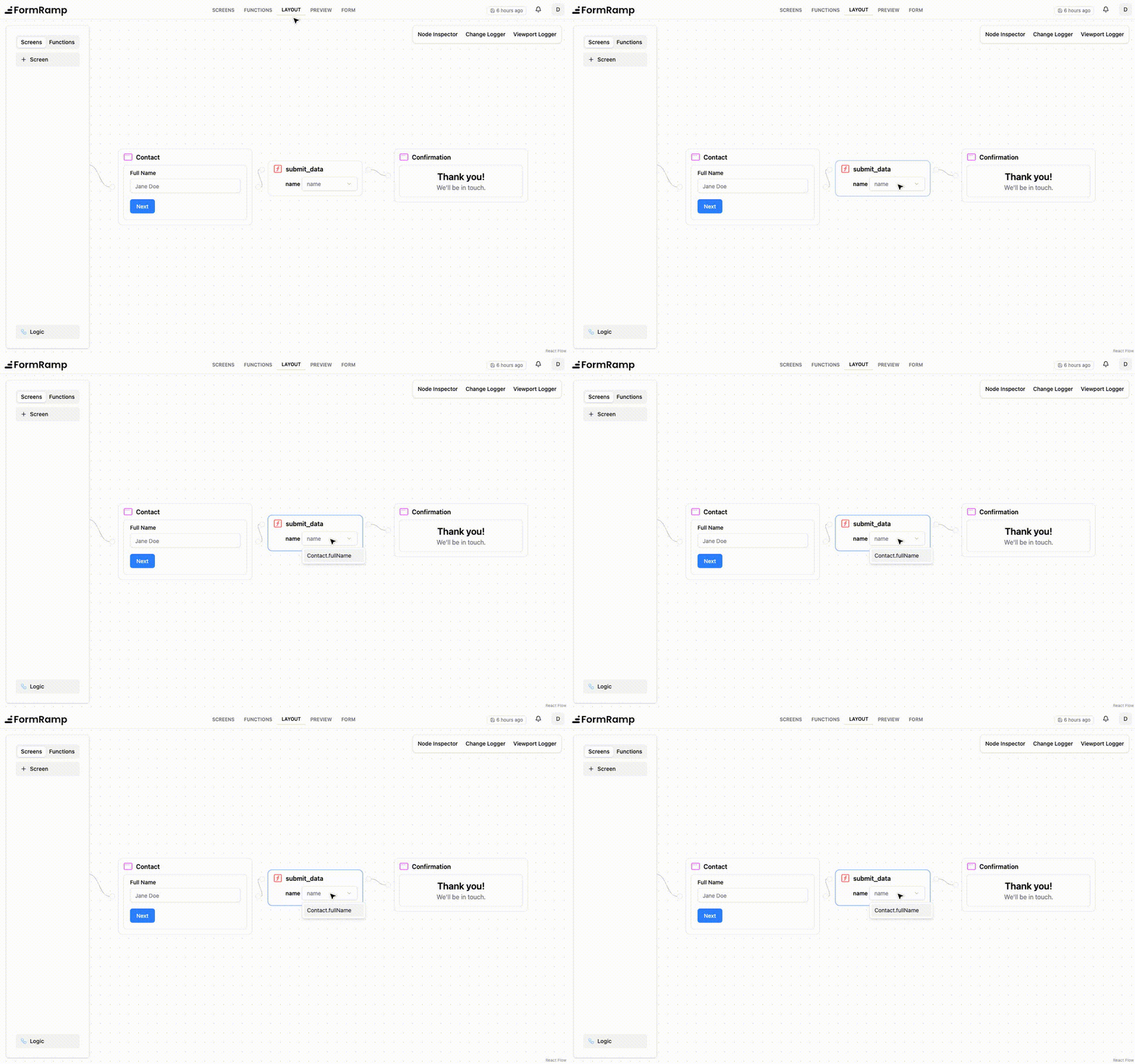
When a function has parameters, a dropdown appears on the node for each parameter. Use these dropdowns to bind a parameter to a value collected on a previous screen or returned by a previous function.
Logic Nodes
Section titled “Logic Nodes”Logic nodes branch the flow based on a variable value. Select a variable from the dropdown, and an exit handle is created for each possible value of that variable. Every handle must be connected before the form can be published.
Logic nodes can be chained to create multi-level branching.